
@Maddy3When using bluetooth with iPhone, Google Maps works for a few seconds and then crashes the bluetooth connection with phone. I've done a reset on the menu screen and also downloaded the latest software on phone and on Bronco Sport. Has anyone else had this problem and did you find a fix? I called a Ford service department, but they said they had never heard of this issue- shocking haha. It's been going on for months and is driving me nuts. Switched to Waze, nothing will make it play on speakers when on a call, even when that setting is enabled.
I replicated your scenario but not the issue you are having:
iPhone 15 Pro: iOS 18.3.2 (not the latest because 18.4 is buggy)
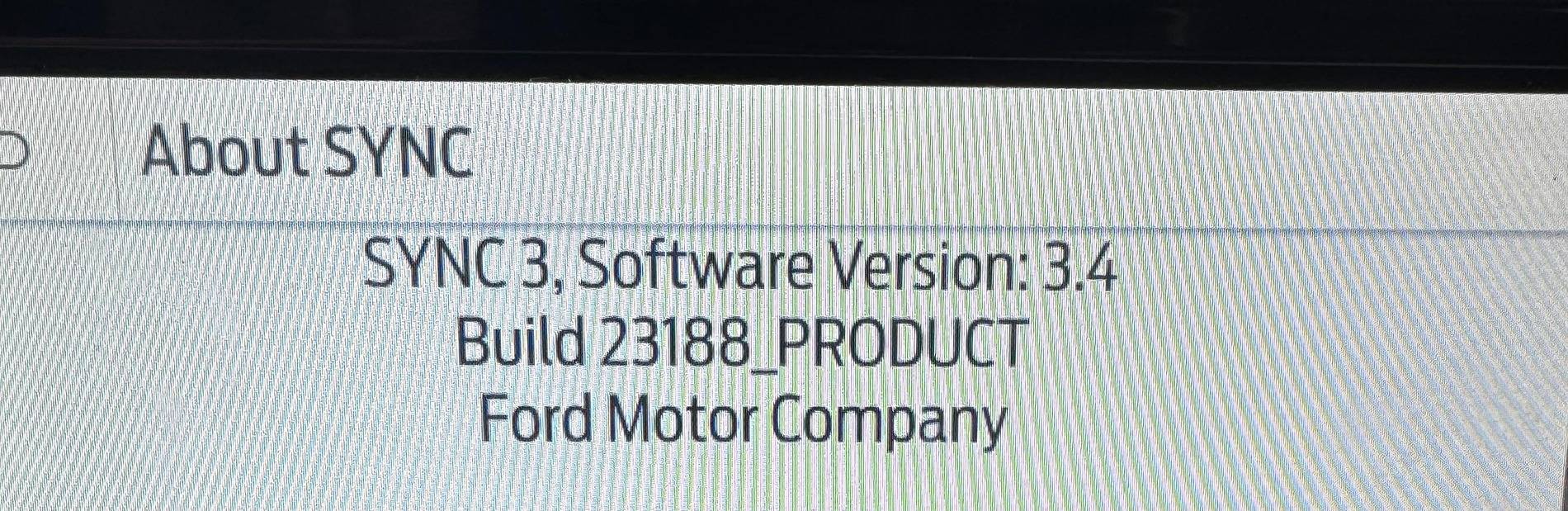
Sync version: 3.4 23188 (latest)
iPhone connected to Sync using Bluetooth and is not plugged into any USB Port
Google Maps running on the iPhone and works fine - voice directions come out over the vehicles speakers and Google Maps does not “crash” for me
Can you please provide more info - you said “Google Maps works for a few seconds and then crashes the bluetooth connection with phone” - what does crashes mean? Can you be more specific?
Later in your post you said “nothing will make it play on speakers when on a call, even when that setting is enabled”
Also see my Note below which states:
Note: Google Maps directions will not play over SiriusXM or other audio sources.
What is the specific setting you are referring to that you enabled? A setting on the Sync 8” Display or a setting on the iPhone - what is the exact setting you refer to?
Here are Google Maps settings that I use:
iPhone Google Maps unmute voice directions (when CarPlay inactive):
1. Requires 8” Display Source set to iPhone (Bluetooth).
Note: Google Maps directions will not play over SiriusXM or other audio sources.
On the iPhone, in Google Maps App: Settings, Navigation:
(1) Sound & voice Guidance audio: Unmute
(2) Guidance volume: Normal
Enable:
(3) Play voice over Bluetooth
(4) Play as Bluetooth phone call (this turns off audio sources when Google Maps is speaking)
iPhone Google Maps voice volume level (when CarPlay inactive): adjust the vehicle radio volume to a reasonable level when Google Maps is providing Navigation directions
Google Maps - play Apple Music while navigating:
(1) In Google Maps, Settings, Navigation, Music playback controls: select Apple Music
(2) iPhone Settings->Google Maps: enable Media & Apple Music
Finally in the Google Maps App on the iPhone, make sure the audio (the little speaker) icon is not muting the audio.
So I am not able to replicate the issue you are having and I haven’t tried lately having Google Maps Navigation directions occurring while I am on an iPhone voice call so I’ll try that later.
Sponsored